arbor in VS Code
The extension edits .arbor files as text, with the language server’s
diagnostics, completion and navigation, and as a diagram. Both views edit the
same file: the text stays the source of truth, and the diagram writes its
changes into it. Where things sit on the diagram is kept separately, in a
<name>.arbor.view.json file next to the model.
The screenshots use examples/tour.arbor, a small
model on the software and persistence profiles.
Opening a diagram
Open an .arbor model and run Arbor: Open Diagram, or use the Explorer’s
context menu, or Open Diagram to the Side on the text editor’s title bar.
From a diagram, Arbor: Open Text (also on its title bar) opens the text
beside it.
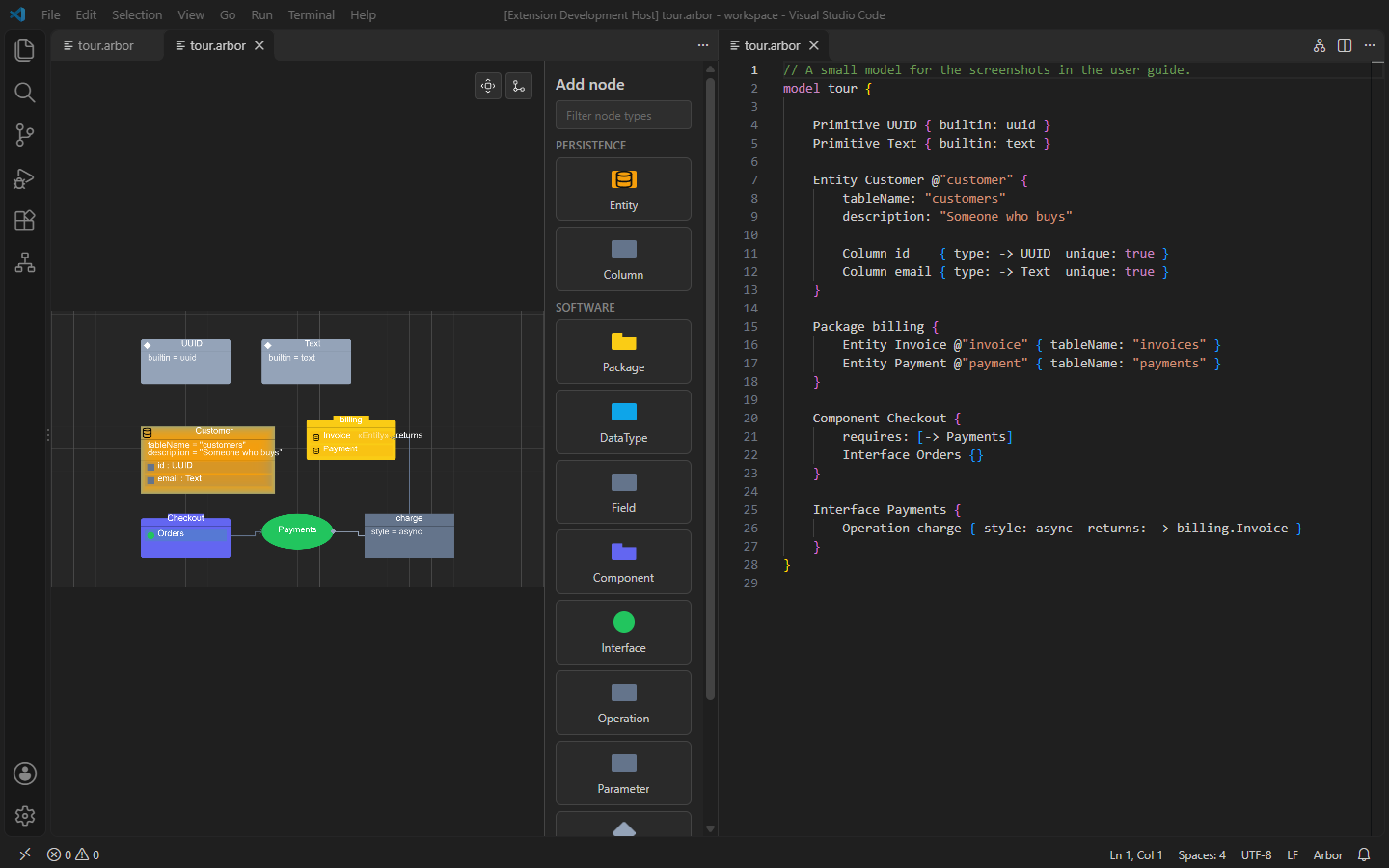
Edits go both ways:
- Typing in the text redraws the diagram.
- Dropping a kind from the Add node palette onto the canvas adds an element to the text; deleting a node removes it and everything nested in it.
- Drawing an edge sets a reference: click Connect, then the source element, then the target (Esc cancels). If several of the source’s references can point at the target, VS Code asks which. Selecting a reference edge and pressing Delete removes that reference. Containment edges come from nesting in the text, so they can’t be drawn or deleted.
- Moving a node, resizing it and bending an edge only change the view file. When you let go, a moved node’s edges, a resized node’s dragged edges and a dragged bend point snap to the grid; hold Alt to place them freely. A container, which you can’t resize, is sized in whole grid steps so its edges stay on the grid too.
- Undo and save are the text editor’s: the diagram follows the file.
A file that holds a profile has no diagram of its own: its kinds appear in the palette of every model’s diagram.
Toolbar
At the top right of the canvas:
- Connect draws a reference (see above).
- Fit to view frames the whole model.
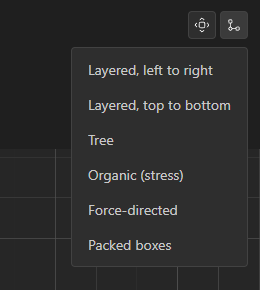
- Lay out automatically arranges the model: layered (left to right or top to bottom), tree, organic, force-directed, or packed boxes. Edges are routed around the nodes with right-angle bends, and those into containers around what’s inside them. The result is saved to the view file like a move, so undoing it means moving nodes back, or restoring the view file.
How elements are drawn
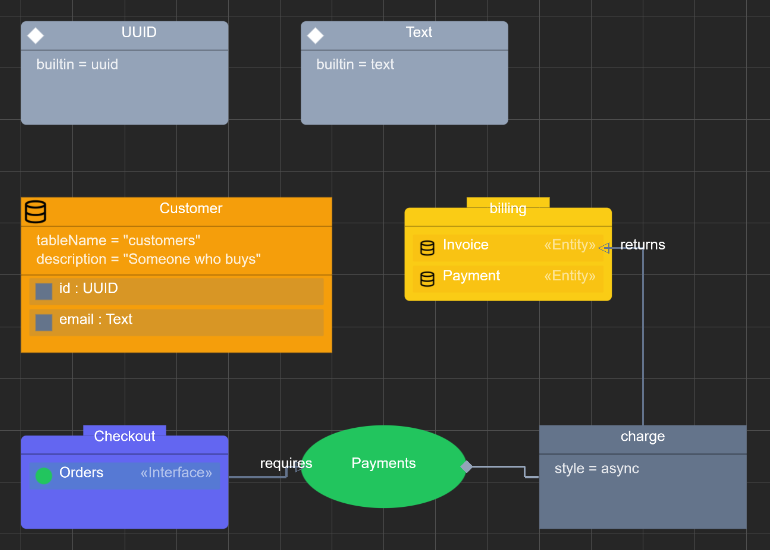
Nodes. An element is drawn as its kind’s visual: shape, colour, label,
and SVG, image or emoji.
Properties. The properties written in an element’s text are listed under
its name, one name = value line each, like a UML class’s attributes:
Customer above shows tableName and description. Profile defaults aren’t
listed (they’re in the Properties view), and references
are drawn as edges instead. Strings are quoted; long lines are cut with ….
The lines are text on their node: click one and you select the node.
A node with properties, or one that holds other elements, is drawn as a box
with a header. A kind whose shape isn’t a box (Interface is a circle) shows
that shape at the left of the header instead, and so does an SVG or emoji. A
node with neither keeps its kind’s shape (Payments above).
Containment. By default an element is joined to what it contains by a
composition edge (◆). It is drawn inside its owner instead when the owner’s kind
sets container: true (as Package and Component do in the software
profile), or when its own kind sets member: true: Field, and so Column,
are members, so an Entity’s columns are rows in its box, like a UML class’s
attributes:
- An element that holds no nested elements of its own is a row: an icon
(its kind’s shape or SVG), its label, and its kind as a UML stereotype,
«Entity»(not for members, whose kind is clear from their owner). A row doesn’t list its properties. - A label can show slots:
Field’s is"{name} : {type}", so a column readsid : UUID, andbuyer : Userfor a foreign key. A reference shown in the label isn’t also drawn as an edge; any other reference of the row is, from its end. - An element that does hold nested elements is a box of its own, inside.
- A container arranges its contents in the text’s order, in columns of up to 8 rows, and sizes itself to hold them. It has no resize handles, and its contents have no positions in the view file.
Edges. References are arrows, labelled with the reference’s name. An edge meets a row at its left or right end, whichever faces the other node. Where several edges would meet one side of a node at the same spot, their ends are spread along it, in the order the edges arrive, so their markers don’t overlap (on a crowded row end, the markers also shrink to fit). Where two edges cross, the more horizontal one hops over the other with a small arc, so a crossing never looks like a junction. Edges leaving a container are drawn over it.
Moving. Dragging a top-level node moves it; dragging a container moves its contents with it. An element inside a container goes back where it was when you let go: its container decides where it goes. (Moving an element to another container, or reordering it, by dragging is planned.)
Properties view
The Properties view (Arbor Properties in the secondary side bar, where Chat sits) shows a form for the element selected in the diagram you last used. Every property of its kind is there, defaults greyed out; a change is written to the text as you type. Show in text jumps to the element.
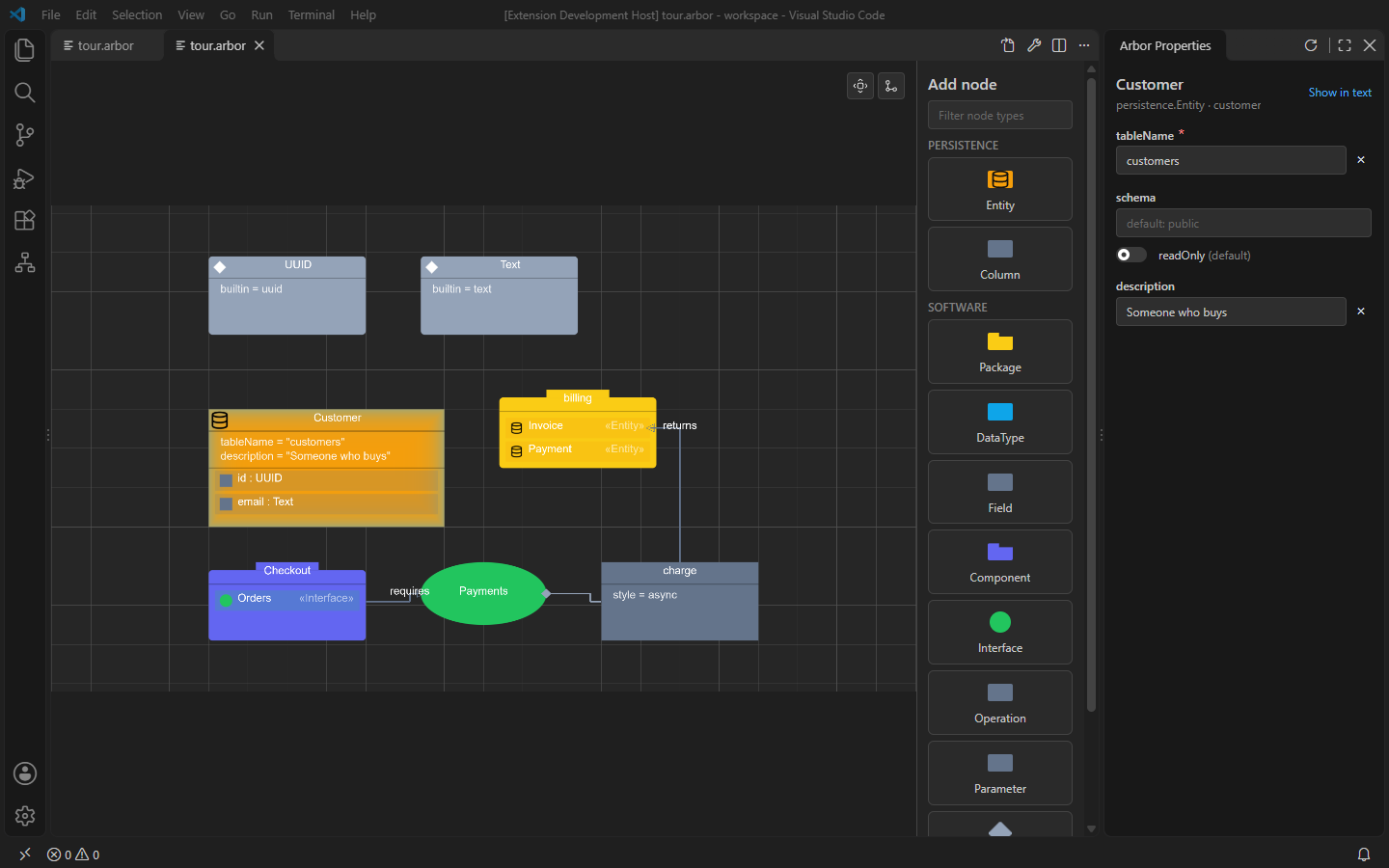
Like any view, it can be dragged elsewhere, collapsed or closed. Arbor: Show Properties (also on the diagram’s title bar) brings it back.
Workspace trees
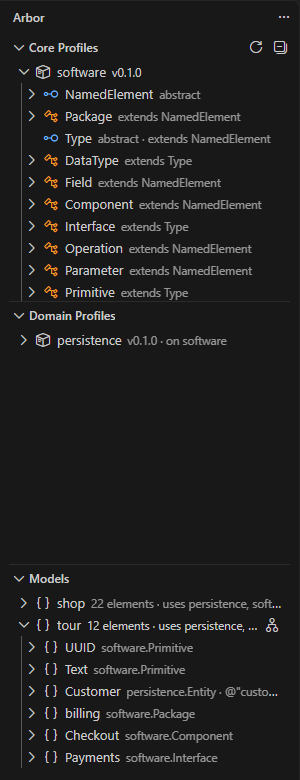
The Arbor activity bar lists the workspace’s profiles and models:
- Core profiles: profiles that build on no other profile, and their kinds.
- Domain profiles: profiles layered on another one.
- Models: each model’s elements, nested as in the text, with their kinds.
Selecting an item shows it in the text. A model’s inline button opens its diagram, and an element’s (Reveal in Diagram) selects it in the diagram.
The view file
<name>.arbor.view.json holds, per element ID, the position (and size, if you
resized it) of each top-level node, and the bend points of each edge. It is
written by the diagram only. With Explorer file nesting on
(explorer.fileNesting.enabled), it is shown under its .arbor file. Elements without an entry are placed automatically, and pinned there
the first time the diagram is opened. Deleting the file resets the layout.
Element IDs come from @"id" where an element has one, else from its
qualified name, so renaming an element without an @"id" loses its place.
Known limitations
- The canvas keeps a 16:9 shape, so in a tall, narrow editor (for example beside the text) it is letterboxed and the diagram is small.
- Text keeps a readable size as you zoom out, so far out, overlapping labels and property lines are hidden until you zoom in.
- Row and property-line widths are estimated, so very wide text can run past the edge of its box.
- Moving elements between containers by dragging isn’t supported yet.